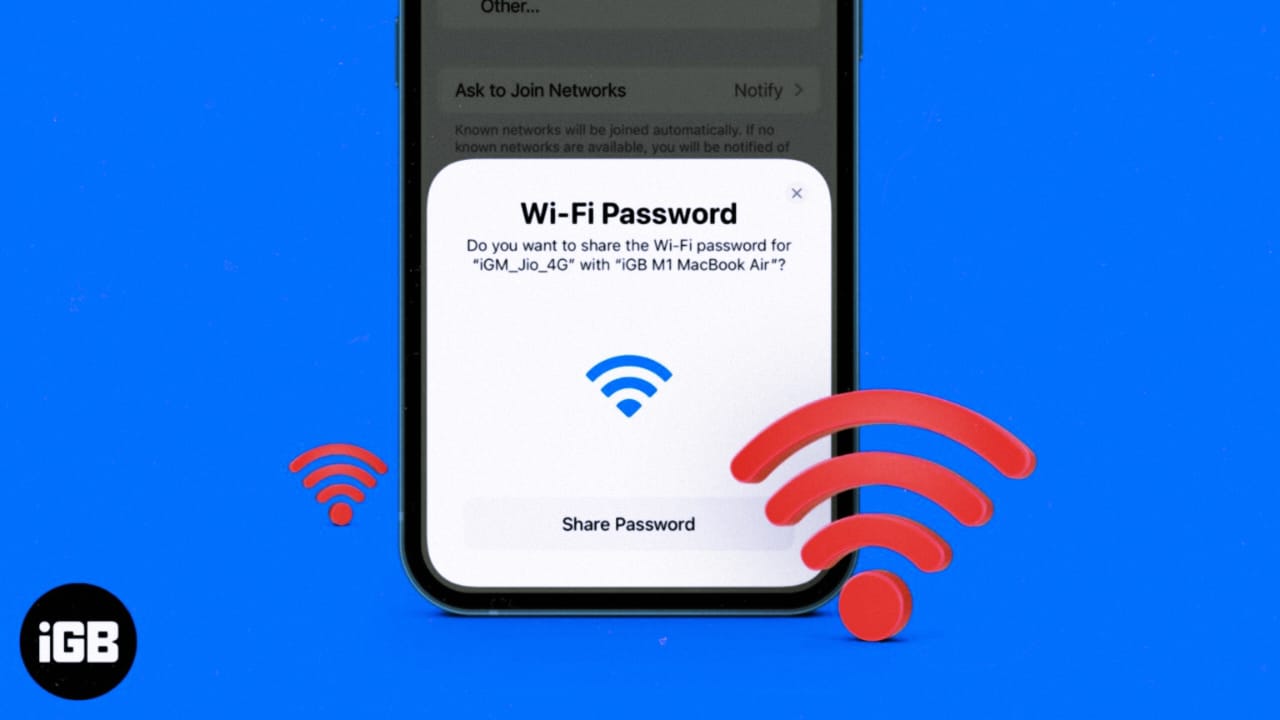
In 2026, technology has become even faster and smarter. Now people prefer to connect to the internet by scanning a simple QR code instead of remembering long WiFi passwords. Be it home, office or a cafe, WiFi QR Code Password Scanner has become a trending feature that saves time and also improves security. Nowadays, every new Android and iPhone device supports QR based WiFi sharing, due to which sharing password has become a matter of just a second.
If you are a blogger, content creator, freelancer or small business owner, then this feature is even more useful for you. Instead of telling the password to clients or guests, just show them the QR code and they will get connected instantly. This article will guide you step-by-step on how to best use a WiFi QR Code Password Scanner in 2026 and achieve pro-level results.
Why This Feature/Technology Works Better in 2026
Built-in QR scanner technology in smartphones in 2026 has advanced significantly. There’s no longer a need to install a separate third-party scanner app. The latest updates to Android 14 and iOS have made WiFi QR sharing more secure. Encryption is now stronger, and data is automatically protected.
Another important thing is that high-speed internet and fiber connections have become commonplace. People want the connection process to be fast. A WiFi QR Code Password Scanner works better because:
First, it eliminates human error. Spelling mistakes that used to occur when typing passwords are no longer a problem.
Second, businesses are using this feature for marketing. Restaurants and offices provide easy access to customers by printing their own branded WiFi QR codes.
Third, security improvements have made QR-based WiFi sharing more secure. Random people can’t see the password; they simply scan and connect.
The trend for 2026 is simple: fast connectivity, secure network access, and zero-hassle setup.
How to Use a WiFi QR Code Password Scanner for Best Results
If you’re a beginner, there’s no need to worry. The process is very simple. Just understand a little basic setup.
Step 1: Basic Setup or First Method
First, open your phone’s WiFi settings. If you’re using an Android, go to Settings and select Network & Internet or WiFi. You’ll find the Share option next to Connected Networks. Tapping on it will prompt the system to verify your fingerprint or PIN, and then the WiFi QR code will appear on the screen.
The person who wants to connect should open their phone’s camera and scan the QR code. The Connect option will automatically appear on the screen. WiFi will connect in one tap, without having to type in a password.
If you want to scan the QR code, open your camera app. Most phones from 2026 have built-in QR recognition. The camera will detect the QR and display the WiFi network name. Simply confirm, and you’re connected.
This method is best for homes and small offices with frequent guests.
Step 2: Advanced or Pro Method
If you’re a business owner or content creator, you can use the advanced method. This method allows you to generate and print a permanent WiFi QR code.
Open your router’s admin panel. Go to WiFi settings and confirm the network name and password. Now, use a trusted QR generator tool that specifically supports the WiFi QR format. Enter the SSID, encryption type, and password. The system will generate a custom QR code for you.
You can have this QR code framed and placed in your office reception or studio. You can also customize the design with your brand logo for a professional look. But always ensure the QR code is printed clearly and in high resolution.
Advanced users set their network to Guest Mode. This keeps the main network secure and guests connect on a separate network. This is a smart security trend for 2026 that’s essential for small businesses.
Professional Tips to Get DSLR-Level or Pro Results
You might be wondering what a DSLR-level result means in a WiFi QR code. Here, professional results mean a clean, secure, and fast connectivity experience.
First, design the QR code in high contrast. A black and white combination is the most readable. If you’re using colors, make sure there’s a clear distinction between the background and the QR pattern.
Another tip is to avoid printing the QR code too small. It’s best to keep it at least 4×4 inches so the camera can easily scan it.
The third important point is security. Change your WiFi password every 3 to 6 months and generate a new QR code. This reduces the risk of unauthorized access.
People often make the mistake of placing their main home network’s QR code in a public place. Avoid this. Always use the guest network.
If you’re a blogger, frame your QR code in an aesthetic way in your studio or workspace. This shows professionalism and creates a positive impression with visitors.
Best Settings, Apps, or Tools (If Applicable)
By 2026, most smartphones will have built-in WiFi QR sharing, reducing the need for a separate app. However, external QR scanner apps can be helpful in some situations, especially when the camera isn’t detecting properly.
Google Lens is a strong and reliable option for Android users. It automatically detects QR codes through the camera. For iPhone users, the default Camera app is sufficient.
It’s recommended to enable WPA3 encryption in your router settings. This is the latest WiFi security protocol, which strengthens data protection. This keeps your wireless network secure.
If you’re printing, use high-quality paper or acrylic board to prevent blurring of the QR code. Low-quality print can cause scanning issues.
Another smart trick for creators is to save the QR code digitally. You can share it via WhatsApp, email, or a website. This makes it easier for remote team members to connect.
Common Problems and How to Fix Them
Sometimes a QR code won’t scan. The most common reason is poor lighting. Ensure proper lighting or turn on the flash.
If WiFi doesn’t connect after scanning, it could be that the password has changed. Generate a new QR code.
Some older devices don’t support WPA3. If you experience connection issues, you can temporarily switch to WPA2 mode, but don’t compromise security.
Blurry or damaged print can also cause problems. Always use a high-resolution QR image.
If your phone’s camera isn’t detecting the QR, enable QR scanning in Settings or check for a software update.
Final Thoughts
WiFi QR Code Password Scanner 2026 is a simple yet powerful feature that makes connectivity easy, fast, and secure. Whether you use it at home or in your business, this method is far superior to traditional password sharing.
The biggest benefits of this feature are time savings and security. You can give a professional experience to your guests and also keep your network secure. If you have been sharing passwords manually till now, then it is time to adopt QR based WiFi sharing.
The aim of smart technology is to make life easier. WiFi QR Code Password Scanner is also a strong step in this direction. Try this feature today and take your internet experience to the next level.