
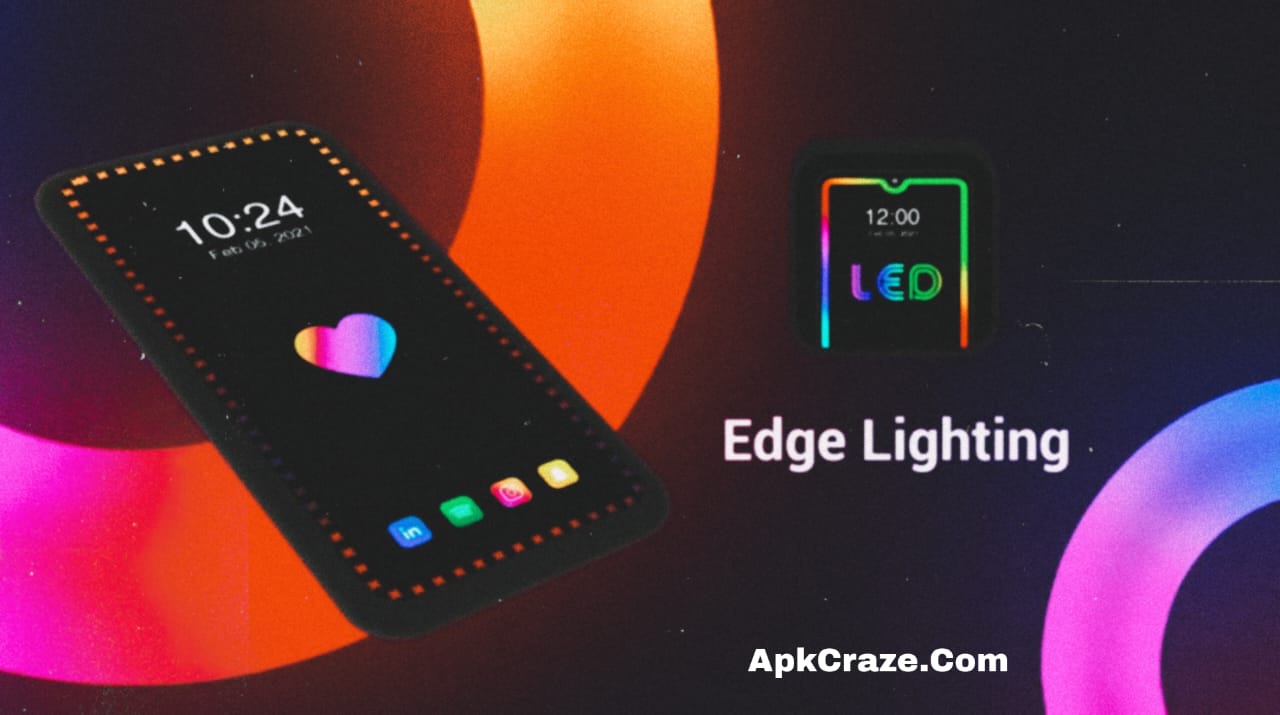
How to apply edge lighting border lighting to an Android phone in 2025. Easy steps, best apps, and battery-saving tips.
Introduction
These days, everyone wants to make their Android phone unique and stylish. If you also want to give your phone a premium look, edge lighting border lighting is a great option. This feature was previously only available on expensive flagship phones, but in 2025, it’s now available on every Android phone.
In this article, we’ll learn step-by-step how to apply edge lighting border lighting to an Android phone, which apps are best, and how to protect your battery.
What Is Edge Lighting Border Lighting?
EDGE lighting is a glowing light effect that appears around the borders of the phone screen. When:
- The phone is locked
- A notification arrives
- A call arrives
- Music is playing
The border light automatically glows.
👉 This gives the phone a modern, attractive, and premium look.
Benefits of Edge Lighting Border Light
Using Edge lighting has many benefits:
- 📱 Makes the phone look stylish
- 🔔 Notifications are easily noticed
- 🎨 Multiple colors and effects available
- 🔋 Battery-friendly settings available
- 💯 Works without root
What do you need to install Edge Lighting Border Light?
To install edge lighting, you only need:
- Android phone (Android 8 or above recommended)
- Internet connection
- EDGE lighting app
👉 Root is not required at all
Best Edge Lighting Border Light Apps (2025)
These apps are the most popular and safe in 2025:
- Edge Lighting – Border Light
- Always On Edge
- EDGE Mask
- Border Light Live Wallpaper
⚠️ Always download apps from the Play Store to keep your phone safe.
Step-by-Step Method to Apply Edge Lighting Border Light
Step 1: Install the App
Open the Play Store and search for and install the Edge Lighting Border Light app.
Step 2: Allow Required Permissions
The following permissions will be requested upon opening the app:
- Display over other apps
- Notifications access
👉 Allow all permissions, otherwise the feature will not work.
Step 3: Select Border Style
Within the app,
- Border thickness
- Corner radius
- Animation speed
- Color style
you can select:
Step 4: Customize Colors
You can choose:
- Single color
- Multi color (RGB)
- Neon glow
- Gradient effect
Step 5: When to Show EDGE Lighting
Decide when to show edge lighting:
- Only on notifications
- Only while charging
- On lock screen
- Always on display
Step 6: Save & Activate
Save the settings and turn on the Enable button.
🙏 Mubarak ho! EDGE lighting has been successfully activated on your phone.
Solution to Battery Drain Problem
Many peoples show that EDGE lighting will drain the battery. If you follow these tips, you won’t have any issues:
- Keep animation speed medium
- Avoid the Always On option
- Enable only notifications
- Allow apps to optimize battery life
Which Phones Does Edge Lighting Work Best ON?
Edge lighting works best on:
- AMOLED/OLED display phones
- Samsung, Xiaomi, Vivo, Oppo, Infinix
- Punch-hole and curved screen phones
It also works on LCD phones, but the effect is slightly less.
Is EDGE Lighting Safe?
Yes ✅
If you:
- Use a trusted app
- Don’t give extra permissions
- Avoid unknown sources
EDGE lighting is 100% safe
So, Here I am recommending a best App for edge lighting Setup , which you can download for free from Google Play store, you can use it.
Conclusion
Agar aap apne Android phone ko 2025 mein stylish aur premium look dena chahte ho, to EDGE Lighting Border Light ek zabardast option hai. Yeh feature lagana bohot easy hai, battery friendly hai aur phone ke look ko next level par le jata hai.
Is guide ko follow karein aur apne phone ko bilkul naya look dein.
Agar aapko post pasand aaye to zaroor share karein aur comment mein batayein ke kaunsa color aapko best laga.