
In today’s digital age of 2026, Android phones have become not just a means of communication, but a complete lifestyle tool. New apps are being launched every day, but at the same time, people also face a common problem: the “App Not Installed” error. This error often appears when you try to install an APK file or an app from the Play Store doesn’t install properly. It may seem like a small problem, but if it’s not resolved, it causes a lot of frustration. In this guide, we’ll learn how to fix this error using simple and practical methods, so you can use the full potential of your Android device without any tension.
Why This Feature/Technology Works Better in 2026
Android systems in 2026 have become significantly more advanced. Security features are stronger than before, automatically blocking unauthorized or corrupted apps. Google has upgraded Play Protect and system-level verification, which protect users from harmful apps. However, this security sometimes prevents genuine apps from being installed.
In addition, storage management and permission control have also become smarter. Android now cleans unnecessary files in the background and rejects incompatible apps. These improvements are for overall performance and security, but if users don’t know the proper settings, the “App Not Installed” error can be difficult to understand.
How to Use App Installation Fix Methods for Best Results
Step 1: Basic Setup or First Method
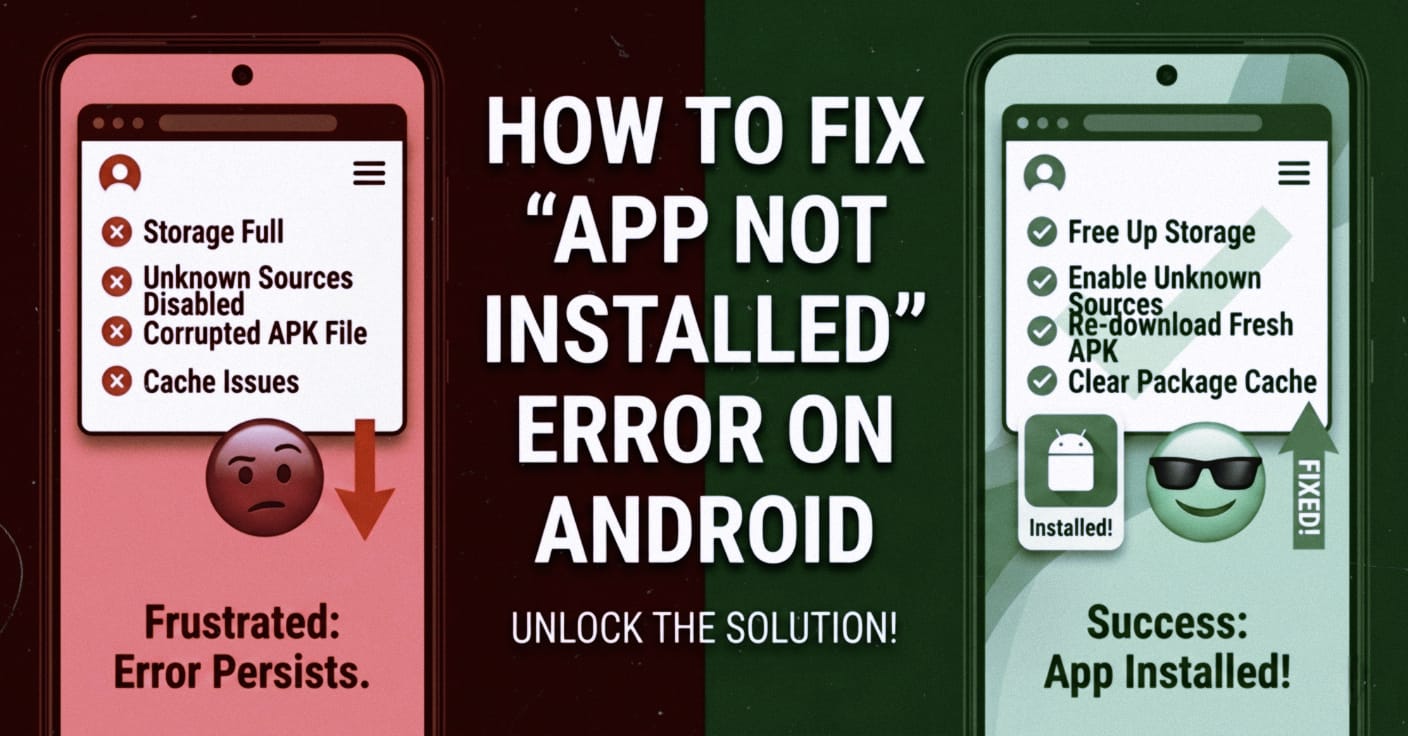
First, you should check your phone’s basic settings. Often, this error occurs due to a storage or permission issue. Ensure you have enough storage available on your phone. If the storage is full, delete unnecessary photos, videos, or apps.
Next, enable the “Unknown Sources” or “Install Unknown Apps” option, especially if you’re installing an APK file. You can find this option in the Settings > Security or Privacy section. If it’s disabled, Android won’t allow any external apps to be installed.
Then open the downloaded APK file again and try installing it. In many cases, these simple steps alone solve the problem.
Step 2: Advanced or Pro Method
If the basic method doesn’t work, it’s time to try advanced steps. First, clear your phone’s “Package Installer” cache. To do this, go to Settings > Apps > System Apps > Package Installer and clear the cache and data.
The second important step is to check if an older version of the same app is already installed. If yes, uninstall it. Sometimes a new app won’t install due to a version conflict.
If this still doesn’t solve the problem, change the APK file source. The file may be corrupted or incompletely downloaded. Always download APKs from a trusted source.
Another pro tip is to download apps compatible with your Android version. Not every app works on every device, and this is a common cause of errors.
Professional Tips to Get DSLR-Level or Pro Results
If you want to take your Android experience to a professional level, simply troubleshooting isn’t enough; optimizing the system is also crucial. Always keep your phone updated. The latest updates not only fix bugs but also improve app compatibility.
Limit background apps, as excessive background activity can slow down or cause the installation process to fail. Options like “Force Allow Apps on External Storage” in Developer Options can also be used, but only if you have the proper knowledge.
Another common mistake people make is installing modded or cracked apps. These apps are often not properly signed, which is why Android rejects them. Therefore, always use original and verified apps.
Best Settings, Apps, or Tools (If Applicable)
Some tools and settings can prove very helpful to you in 2026. File manager apps that offer advanced permission control make APK installation easier. Such tools also give you the option to check file integrity.
It’s also important to keep Google Play Protect enabled, but if it’s blocking a safe app, you can temporarily disable it and try installing it again.
You can also use “Storage Cleaner” apps that free up space by removing junk files. However, over-cleaning should be avoided here as there’s a risk of deleting some system files.
Common Problems and How to Fix Them
Beginners often encounter some common issues. For example, the “Insufficient Storage” error clearly indicates that the phone is running low on space. The simple solution is to delete unnecessary data.
“App Not Compatible” means that the app is not designed for your Android version. In this case, you’ll need to find an updated version or an alternative app.
“Parse Error” is also a common issue, usually caused by a corrupted APK file. The solution is to download the file again.
Sometimes, the “App Not Installed” error appears for no apparent reason, often due to a system glitch. In such cases, restarting the phone or using Safe Mode can be helpful.
Final Thoughts
The “App Not Installed” error is a common but easily fixable issue. Advanced Android systems in 2026 have improved security and performance, but they also require some user awareness. If you understand and apply both basic and advanced methods, you can resolve this problem in minutes.
With consistency and the right approach, you can not only fix errors but also use your Android device at a professional level. Every problem has a solution; all it takes is the right direction and a little technical understanding.
What is the most common cause of the “App Not Installed” error?
The most common causes are storage issues, incompatible apps, or a corrupted APK file.
Is it safe to install an APK?
If you download an APK from a trusted source, it’s safe; otherwise, it can be risky.
Can restarting the phone fix this problem?
Yes, in many cases, a simple restart fixes system glitches.
Can Play Store apps also give this error?
Sometimes, Play Store apps won’t install due to network issues or cache issues.
Is a factory reset the last resort?
Yes, but only if all other methods fail, as this deletes all your data.