
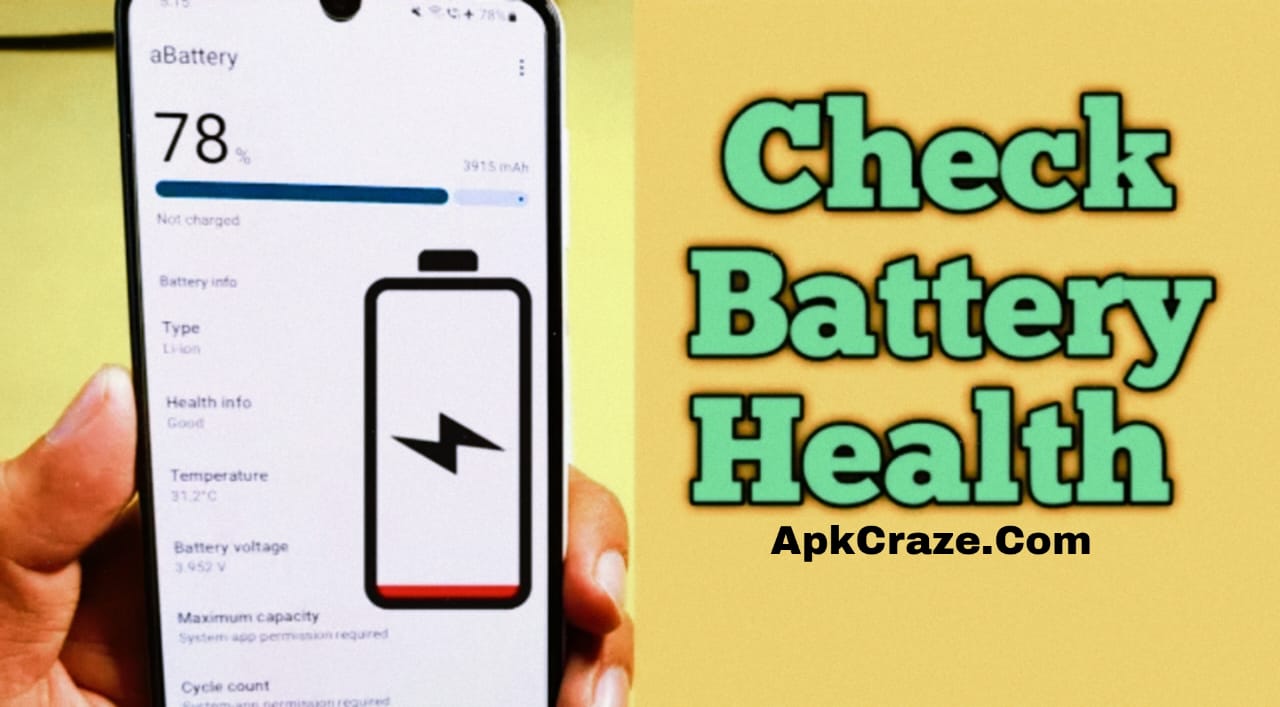
How to check the battery health of an Android phone? A risk-free, technically-informed step-by-step guide for 2026.
Introduction
Smartphones have become a crucial part of our daily lives these days. However, as phones age, their battery performance declines. Sometimes the phone discharges quickly, sometimes it shuts off unexpectedly.
The most common question is:
👉 How to check the battery health of an Android phone?
In this complete Roman Urdu guide, you will learn:
- What is battery health?
- Signs of a bad battery.
- Step-by-step methods for checking battery health.
- Tips to improve battery life (2026)
What is battery health?
Battery health refers to how strong your battery is now compared to its original capacity.
Example:
- New phone battery = 100% health
- After 1–2 years = 80–85%
- Below 70% = Battery is considered weak
Common Signs of a Bad Battery
If your phone is experiencing these problems, it’s important to check its battery health:
- Phone drains quickly
- Suddenly dropping from 100% to 80%
- Charging slow
- Phone overheating
- Phone shutting down at 20%
Method 1: Battery Health Check by Dial Code (Hidden Method)
This is a simple and safe method that works on most Android phones.
Step-by-Step:
- Open the phone’s dialer
- Dial this code:
- ##4636##
- Tap “Phone Information”
- Scroll down
- Here you can find:
- Battery status
- Battery temperature
- Charging condition
📌 Note: Not every phone shows the battery health percentage, but basic information is available.
Method 2: Checking Battery Condition from Settings
Some Android phones (like Samsung, Pixel) have a built-in option.
Steps:
- Open Settings
- Go to Battery & Device Care
- Select Battery options
- Check Usage and Performance
If the battery is draining excessively, understand that its health is deteriorating.
Method 3: Battery Health Check with a Trusted App (Safe Apps)
If you want to see the percentage, you can use trusted apps (just an example, no brand promotion).
How to use:
- Install the Battery Health app from the Play Store
- Open the app
- Let the phone charge to 100%
- The app will show the battery health percentage
⚠️ Tip: Use only high-rated and safe apps.
What should be the battery health? (Ideal Range)
- 90–100% → Excellent
- 80–89% → Good
- 70–79% → Average
- Below 70% → Battery replacement recommended
Best Tips to Improve Android Battery Life (2026)
1. Avoid Overcharging
Don’t skip charging overnight.
2. Don’t Always Use Fast Charging
Fast charging heats up the battery.
3. Keep Background Apps Closed
Too many apps drain the battery.
4. Use Dark Mode
Especially in AMOLED phones.
5. Use the Original Charger
Cheap chargers damage battery health.
When should the battery be replaced?
If:
- Battery health is below 70%
- Phone shuts down even during normal use
- Charging is very slow
👉 TThe best option is to replace the battery.
Battery Health Myths (Which Are False)
❌ 100% charge is necessary the first time
❌ The battery should be used to zero
❌ Always charge the phone with a fast charger
These are all myths and cause damage to the battery.
Conclusion
If you want to make your phone last longer, checking battery health is crucial. By following the step-by-step methods in this guide, you can easily understand your Android battery condition.
Take care of your battery, adopt proper charging habits, and improve your phone’s performance.
If you found this post helpful, please comment and share 👍
Does Android have a battery health percentage?
Not every phone has one, but it can be checked through apps.
What should battery health be?
Above 80% health is considered good.
Does fast charging damage the battery?
Excessive use weakens the battery.
When should the battery be replaced?
When the health drops below 70%.